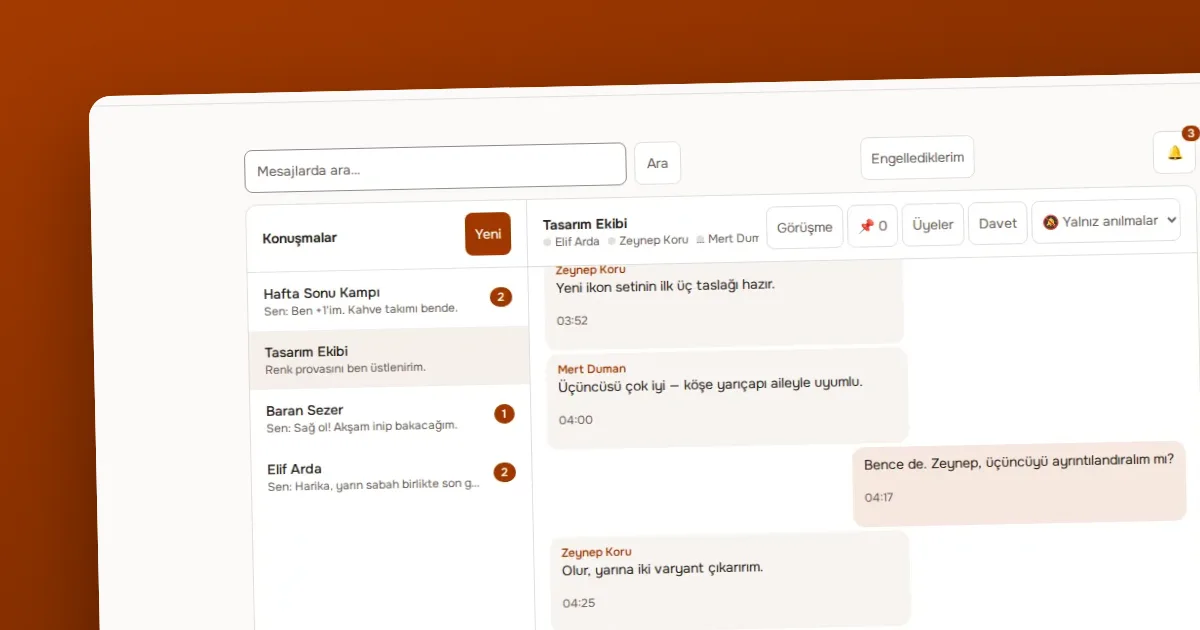
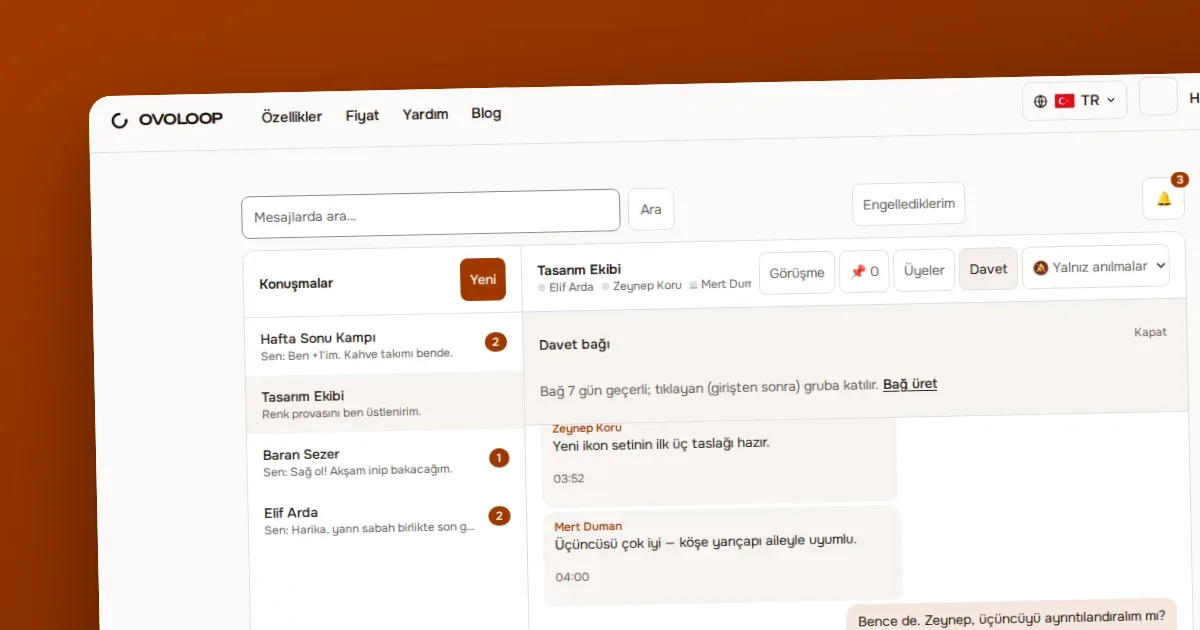
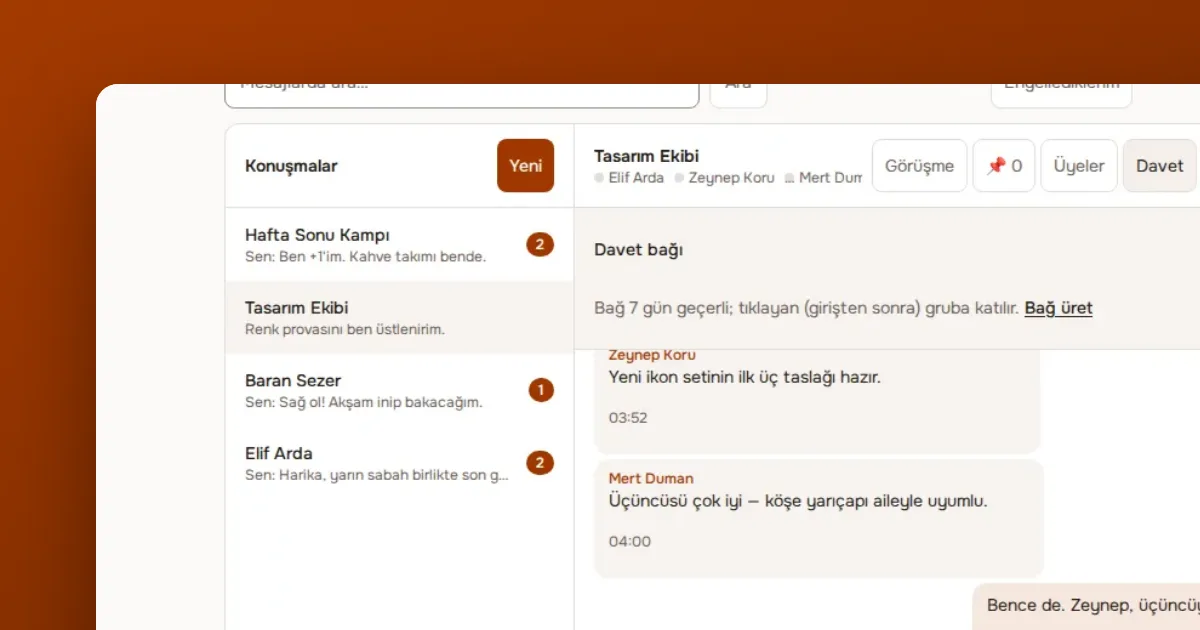
In short: In OVOLOOP you set notifications separately for each conversation: all messages, only when someone mentions you, or none. Browser notifications (web push) are optional and work with your browser's permission. The aim is to cut noise without missing the message that matters.
Why does managing notifications matter?
The biggest complaint about team chat is noise. Someone who gets a notification on every message eventually turns all notifications off and misses what really mattered. A good notification setup brings forward the messages that deserve your attention and quietly piles up the rest.
What do the three preferences change?
| Preference | When do you get a notification? | What is it good for? |
|---|---|---|
| All | On every new message in the conversation | Small active groups, direct messages |
| Mentions only (default) | When someone mentions you | Busy channels |
| None | On no message | Channels you want to follow but not have grab your attention |
The preference is per conversation: you can choose "mentions only" in one channel and "all" in a direct message with the same person.
How do I change the preference?
- Open the conversation.
- Go into its notification settings.
- Choose one of the three options.
The preference takes effect at once and affects only your account; nobody else's setting on the team changes.
What does the Sessiz (muted) preference change?
Sessiz is the name of the "none" preference: it takes the conversation out of notifications. To leave it, pick another preference from the same list; nothing turns back on until you do.
When you are in a busy meeting or need to focus, set a channel to Sessiz; when you are done, set your preference again.
How do I turn on browser notifications?
To get notifications when the app is closed or the tab is in the background, you can turn on web push. This works in Chrome, Firefox, Safari and Edge. Permission is asked in your browser's window; if you refuse, you can turn it on later in the browser settings. Notifications arrive only according to the preferences you chose; so a channel you set to "none" sends no browser notification either.
Practical tips to reduce noise
- Keep direct messages on "all". When someone writes to you directly, they often expect something.
- Put busy channels on "mentions only". If someone mentions you, you will see it.
- Keep announcement channels on "all". They usually carry few messages and they matter.
- Mention the right person when you write. Mentioning someone respects their preference while still catching their attention.
- Set time limits. Checking notifications at set times of day is more efficient than being constantly interrupted.
What if I miss a message?
Having notifications off does not stop you seeing the message. When you open the conversation the unread messages are there; the read state is recorded when the conversation opens. To find an important message later you can use search, or add the message to your saved messages with "save".
How do notifications reach me?
There is a notification centre inside the app; mentions, invitations and other events are collected there. Browser notification is an optional extra route. When someone mentions you an email is also sent (at most once an hour per conversation); none is sent for a Sessiz conversation.
Privacy and data
For web push, a subscription record from your browser is stored on the server; it exists only to send you notifications. You can cancel the subscription at any time from the browser permission.
Ready? Set your notification preferences on OVOLOOP.